


No network at all
The app never connects to the internet. The scan and its results stay on your Mac.

Tidy Lite shows how your disk is really laid out, and safely clears what macOS updates and developer tools leave behind.
Free on the Mac App Store. Requires macOS 15 or later.
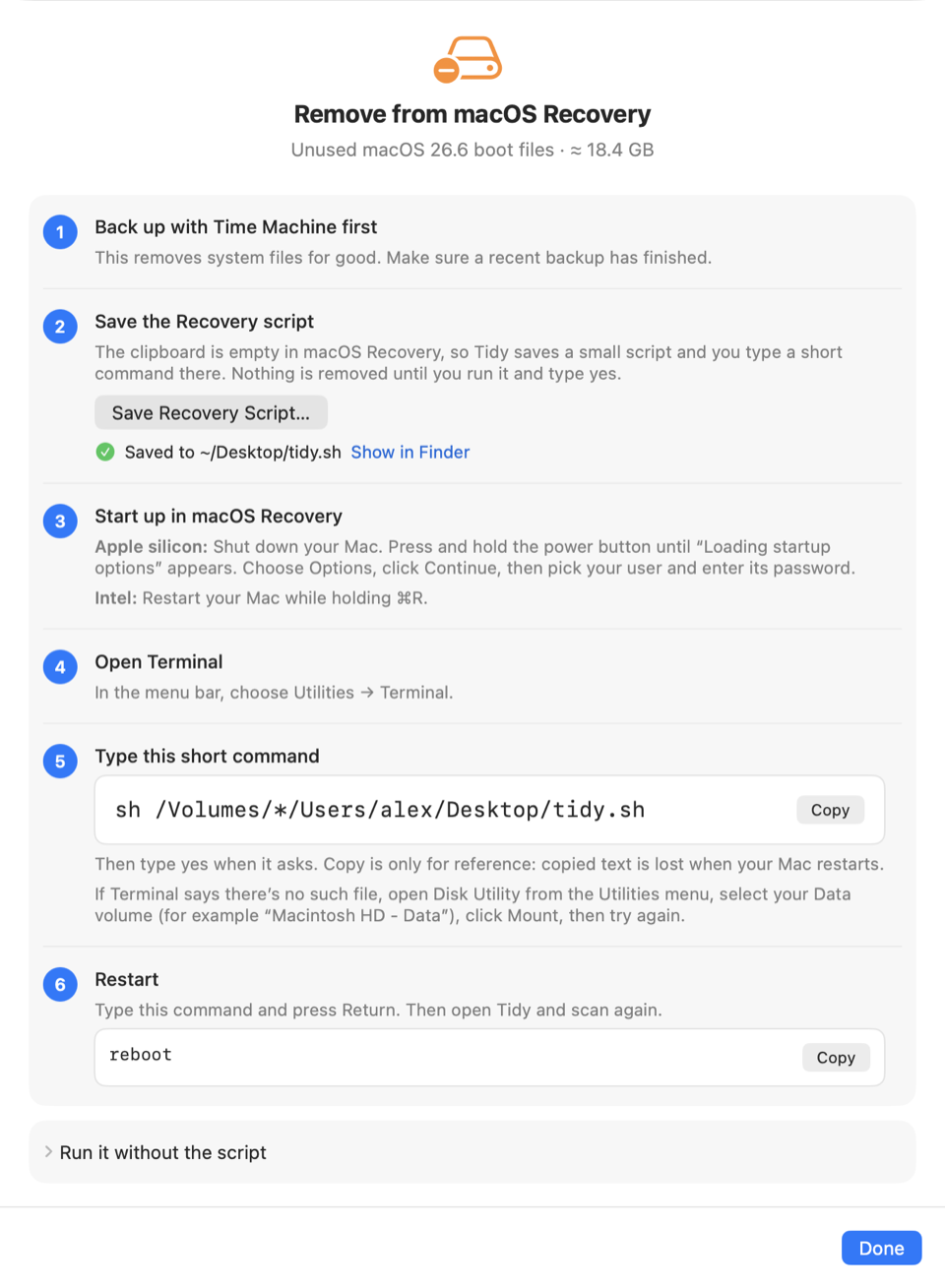
Every macOS install leaves a folder on the hidden Preboot volume, often 15–20 GB, and a reinstall can strand it. Tidy Lite finds the folders nothing uses any more, and walks you through removing them.
Scanning is read-only. Every item is checked again just before it’s removed, and anything that can’t be proven safe is refused. Your own files go to the Trash, never straight to deletion.
Finds leftover macOS Install Data, downloaded updates, and old installer apps, with the exact command to remove system items.
Xcode DerivedData, DeviceSupport, and Archives, once you give it access to your Library folder.
Large cache folders go to the Trash. Local Time Machine snapshots are listed, with the command to remove them.
Background downloads are what get stranded, and security responses should stay on. Tidy Lite checks both.
Real screens from the app. A map of your disk, what can safely go, and a last look before anything does.
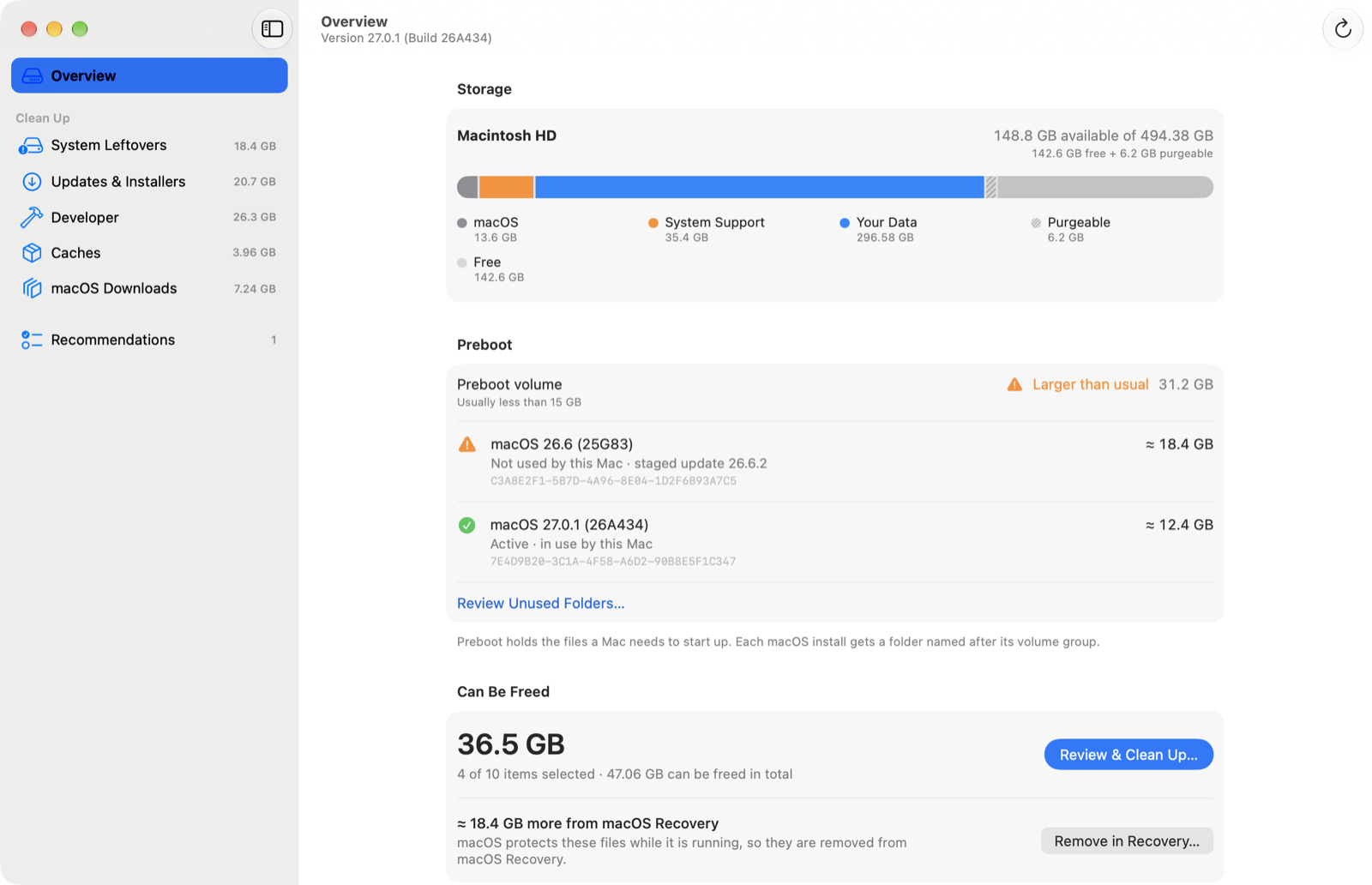
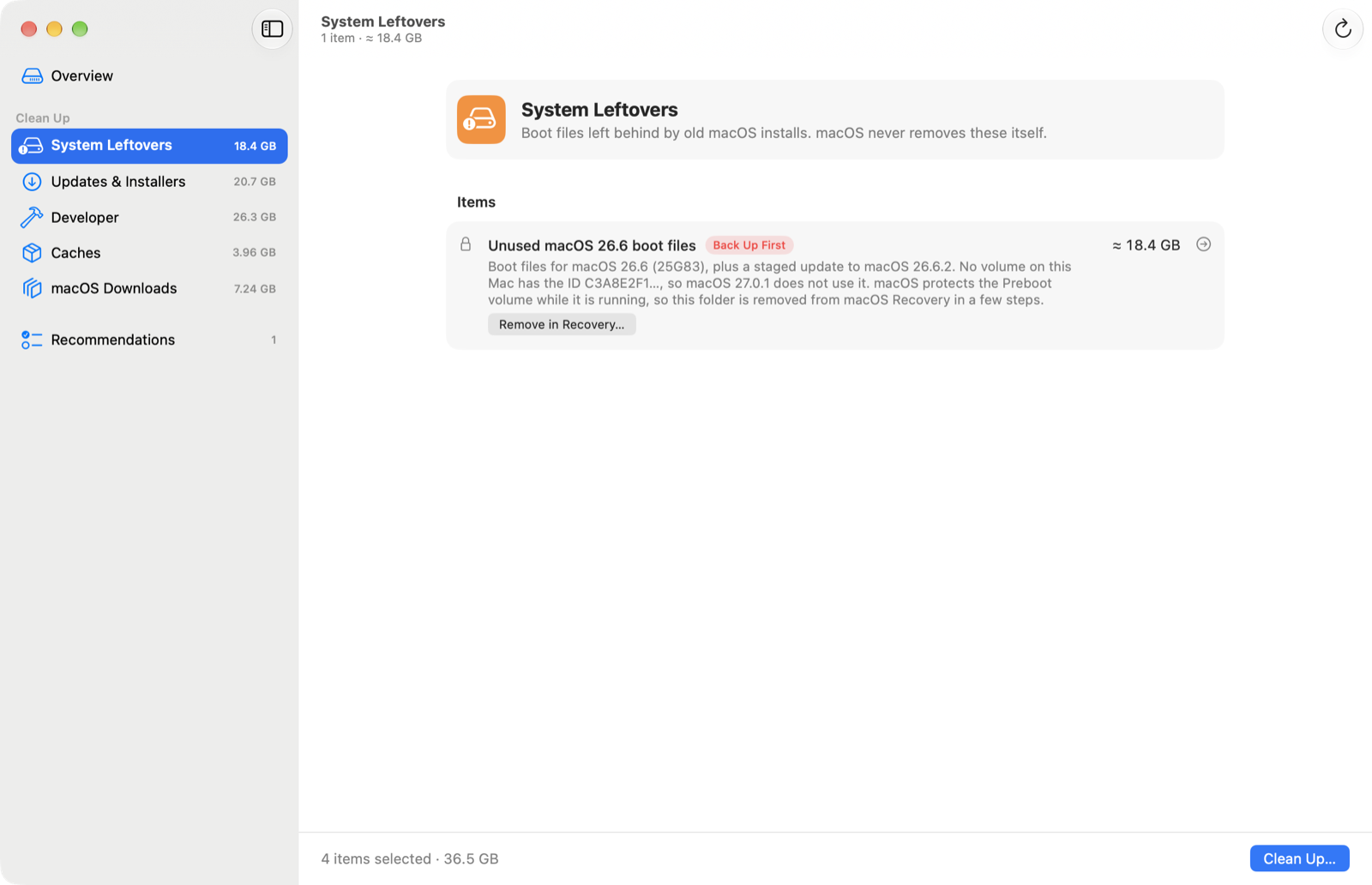
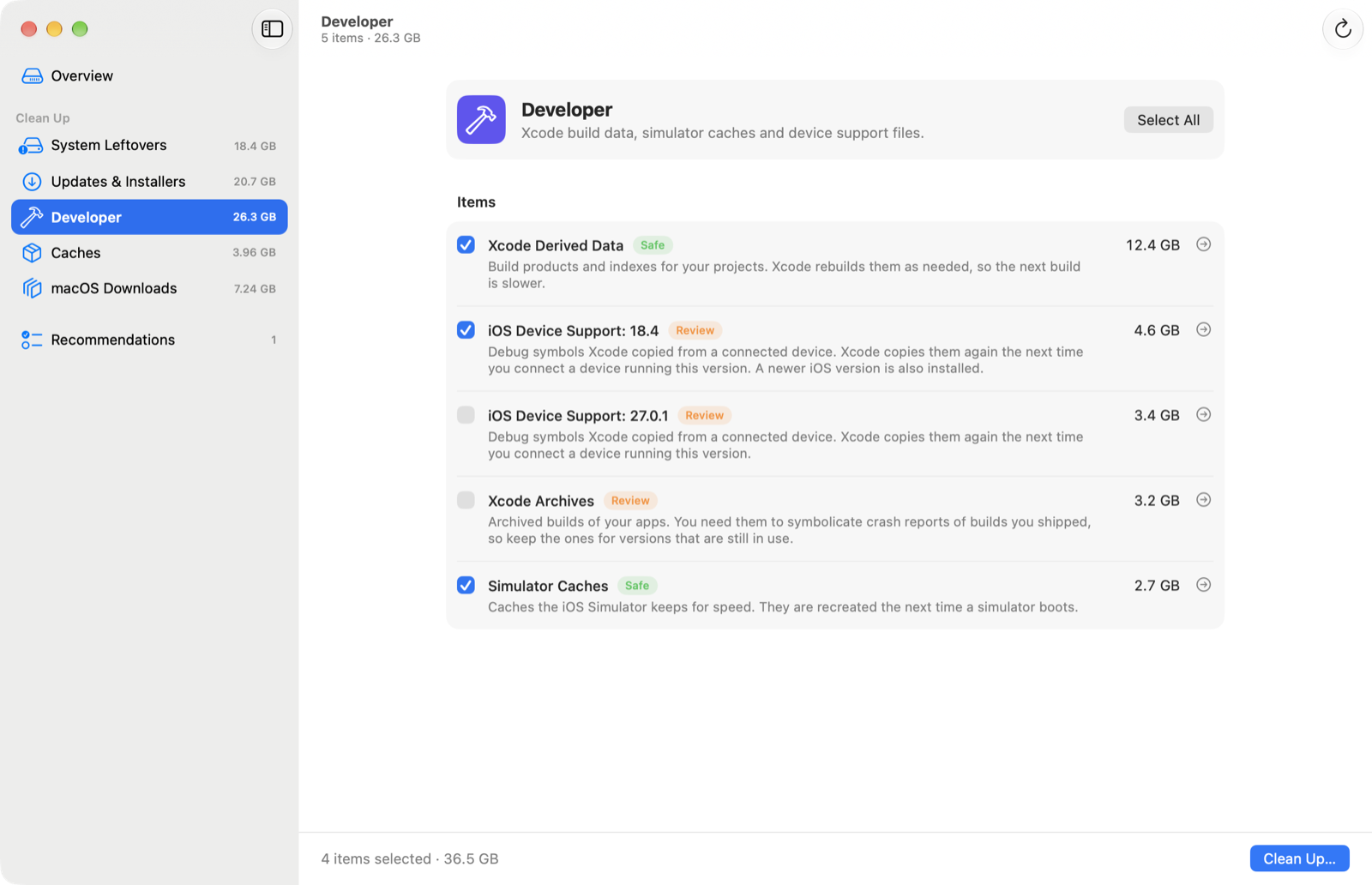
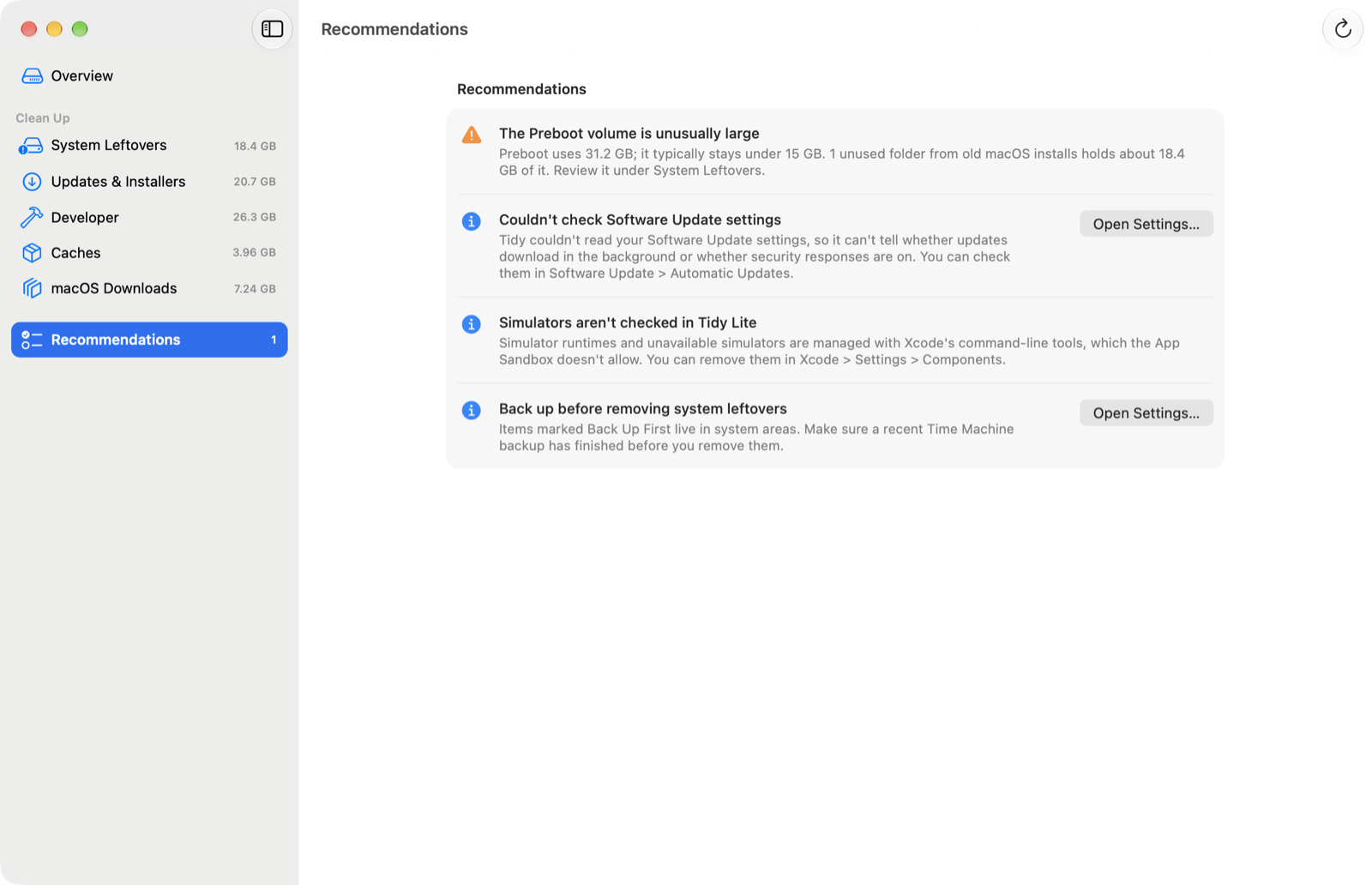
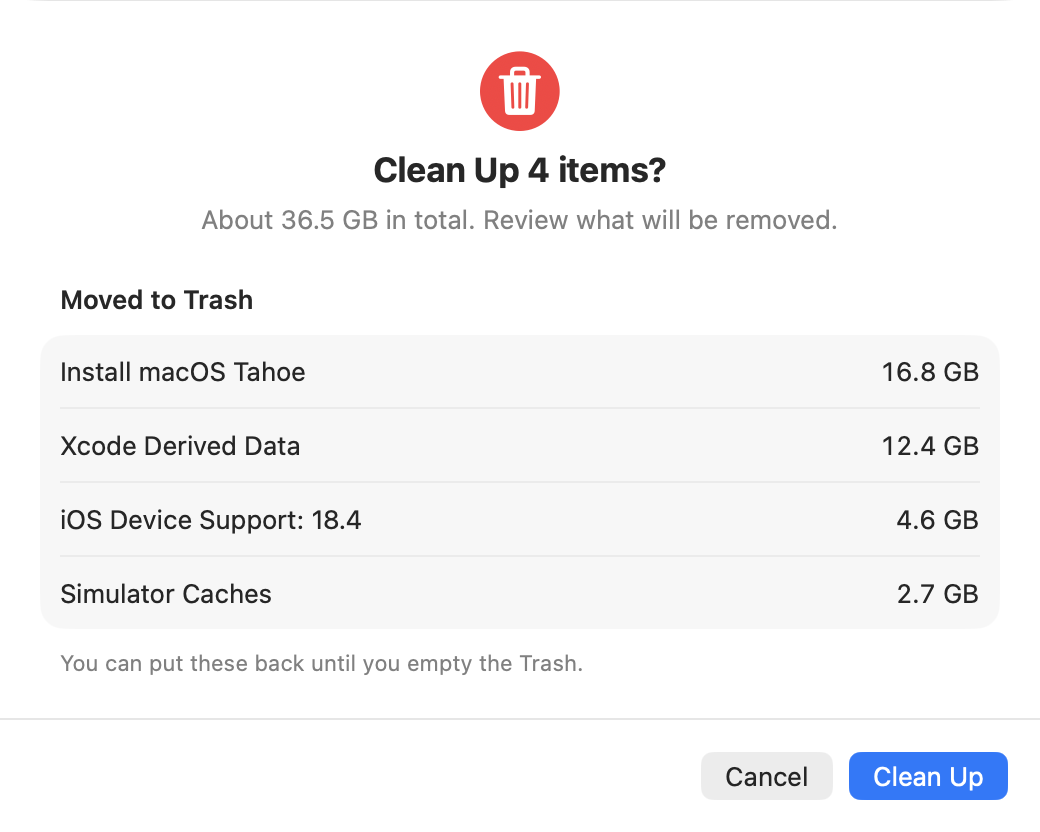
The disk, volumes and files in these screenshots are invented for the demo.
With System Integrity Protection on, nothing can delete from it while macOS is running, not even an administrator. In macOS Recovery, it can.
Tidy Lite saves a small script for you, so in Recovery you type one short command instead of a long one by hand.
The script confirms the folder is still unused and on the right disk, and asks you to type yes before it removes anything.
Tidy Lite makes no network requests and contains no analytics. What it finds on your Mac stays on your Mac.
The app never connects to the internet. The scan and its results stay on your Mac.
Nothing is removed without you choosing it, and your own files go to the Trash so you can change your mind.
Where the Mac App Store sandbox hides a value, Tidy Lite says it couldn’t check instead of calling it fine.